
Clusters are the computational backbone of Azure Databricks. Every notebook you run, every pipeline you execute, and every query you submit needs a cluster behind it to do the actual work. If you’re getting started with Databricks, understanding clusters — what they are, how to configure them, and how to manage them efficiently — is one of the most important foundations you can build. This guide walks through everything you need to know.
What Is a Cluster in Azure Databricks?
A cluster in Azure Databricks is a group of virtual machines that work together to process your data. At its core, a cluster runs Apache Spark, which is the distributed computing engine that powers Databricks. When you write code in a notebook or submit a job, that work gets split up across the machines in your cluster so it can be processed in parallel.
Every cluster has two types of nodes. The driver node is the coordinator. It takes your code, breaks it into tasks, distributes those tasks to the other machines, and collects the results. The worker nodes are the machines that actually execute those tasks. A small cluster might have one driver and two workers. A large production cluster might have one driver and dozens of workers. The driver is always a single node — you never have more than one.
Clusters run inside the data plane of your Azure subscription, which means the virtual machines are provisioned in your own Azure tenant. Databricks manages the orchestration (starting, stopping, scaling, patching), but the compute resources and associated costs sit on your Azure bill.
Cluster Types
Azure Databricks offers two distinct types of clusters, each designed for a different use case.
All-Purpose Clusters
All-purpose clusters are designed for interactive work. When you open a notebook and need to explore data, prototype a pipeline, run ad-hoc queries, or collaborate with teammates, you use an all-purpose cluster. You create them manually, they stay running until you explicitly terminate them or until an auto-termination timer kicks in, and multiple users can attach to the same cluster at the same time.
All-purpose clusters are flexible and convenient, but they can also be expensive if left running when nobody is using them. That auto-termination setting is critical. By default, Databricks will shut down an all-purpose cluster after 120 minutes of inactivity, but you can adjust this to be shorter or longer depending on your workflow.
The key characteristics of all-purpose clusters are interactive use, multi-user access, manual creation, and persistent availability until terminated.
Job Clusters
Job clusters are purpose-built for automated workloads. When you schedule a job — a nightly ETL pipeline, a weekly model retraining run, a batch data ingestion — Databricks creates a fresh job cluster when the job starts and destroys it the moment the job finishes. You never interact with a job cluster directly. It exists solely to execute a specific task.
This design makes job clusters significantly more cost-efficient for production work. You only pay for the compute time the job actually uses. There’s no risk of someone forgetting to shut down a cluster that’s burning money overnight. Every run starts from a clean state, which also eliminates the risk of stale environment issues.
The key characteristics of job clusters are automated creation and termination, single-job scope, lower cost, and clean-state execution.
When to Use Which
A simple rule of thumb: if a human is sitting at a notebook running code interactively, use an all-purpose cluster. If a scheduled process is running code on its own, use a job cluster. During development, you might build and test your pipeline on an all-purpose cluster, then deploy it to production as a job that uses a job cluster.
Cluster Configuration
Configuring a cluster means making decisions about the virtual machines, the runtime, scaling behavior, and several other options. Getting this right has a direct impact on performance and cost.
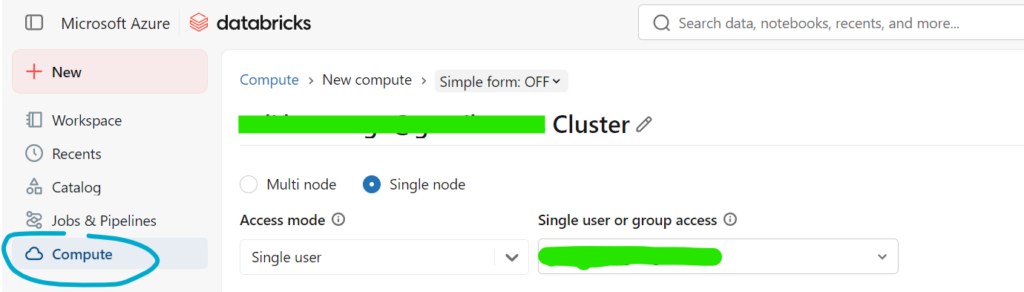
Databricks Runtime Version
Every cluster runs a specific version of the Databricks Runtime, which is a curated package of Apache Spark, libraries, and performance optimizations. When creating a cluster, you choose which runtime version to use.
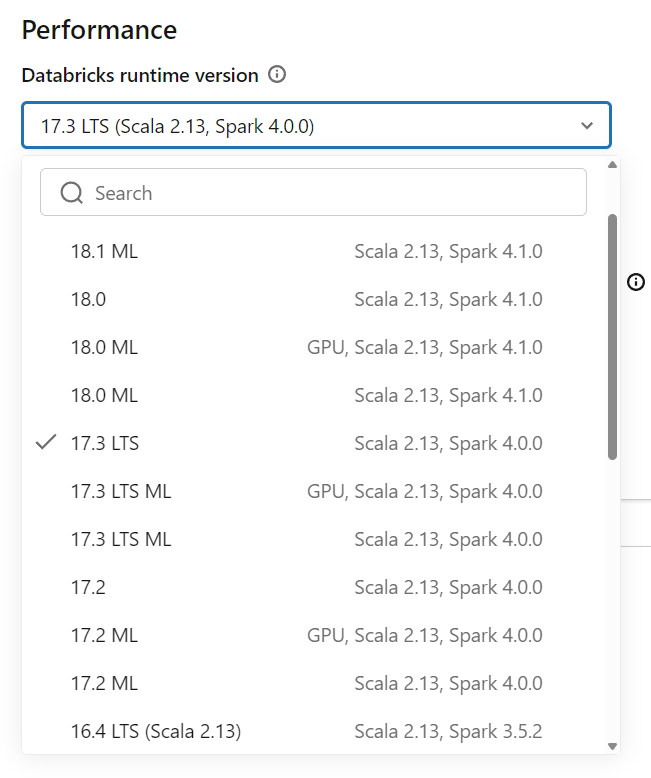
The standard runtime works for general-purpose data engineering and analytics. The Machine Learning runtime comes with popular ML libraries pre-installed, including TensorFlow, PyTorch, scikit-learn, and XGBoost — saving you the hassle of installing and managing these dependencies yourself. The Photon runtime is an optimized engine that accelerates SQL and DataFrame workloads and can deliver significant performance improvements on large-scale data transformations.
Choosing the right runtime matters. There is no reason to pay for ML runtime resources if you are only running SQL transformations, and there is no reason to skip Photon if your workload is SQL-heavy and performance-sensitive.
Node Type Selection
The node type determines what kind of Azure virtual machine each node uses. Databricks exposes a wide range of Azure VM sizes, each with different combinations of CPU, memory, and disk. Your choice depends on the nature of your workload.
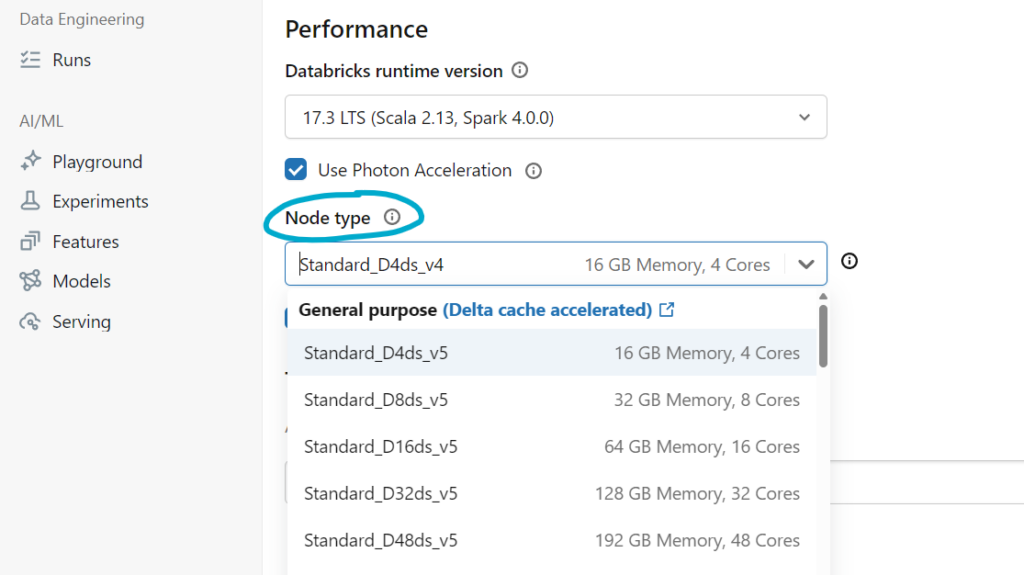
Memory-optimized VMs work well for workloads that need to cache large datasets in memory or run complex joins and aggregations. Compute-optimized VMs are better for CPU-intensive tasks like heavy transformations or machine learning training. General-purpose VMs strike a balance and work well for most day-to-day workloads. Storage-optimized VMs are suited for workloads that do heavy disk I/O, such as large shuffle operations.
You also configure the driver node type separately from the worker node type. In many cases, the driver doesn’t need to be as powerful as the workers, since it coordinates rather than processes. However, if your workload collects large results back to the driver (such as a .collect() call on a big DataFrame), you may need a driver with more memory.
Autoscaling
Autoscaling allows a cluster to dynamically adjust the number of worker nodes based on workload demand. You set a minimum and maximum number of workers, and Databricks adds or removes nodes as needed.
When a job starts and there’s a heavy processing load, Databricks scales up to the maximum to get the work done faster. When the load drops — maybe a transformation finishes and you’re just reviewing results — it scales back down to save cost. This is especially useful for workloads with variable demand, such as interactive exploration where you might go from a massive join to a simple count within minutes.
Be thoughtful with your min and max values. Setting the minimum too high wastes money during idle periods. Setting the maximum too low can bottleneck performance during peak processing. A common starting point for interactive clusters is a minimum of 2 and a maximum of 8, then adjusting based on observed usage.
Auto-Termination
Auto-termination shuts down a cluster after a specified period of inactivity. This is your primary defense against runaway costs. If someone starts a cluster, does some work, then goes to lunch and forgets about it, auto-termination ensures you’re not paying for idle compute all afternoon.
The default is 120 minutes, but many teams set this to 30 or 60 minutes for development clusters. For job clusters, auto-termination is handled automatically since the cluster is destroyed as soon as the job completes.
Spark Configuration
You can pass custom Spark configuration properties when creating a cluster. This lets you tune memory allocation, shuffle behavior, parallelism, and dozens of other Spark settings. For beginners, the defaults work well in most scenarios. As your workloads grow in complexity and scale, tuning these settings becomes an important optimization lever.
Common configurations include adjusting spark.sql.shuffle.partitions for large joins, enabling adaptive query execution, and setting memory fractions for caching.
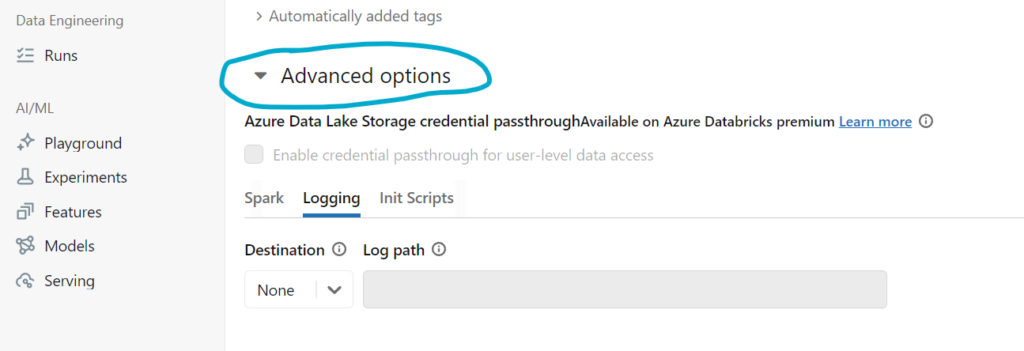
Init Scripts
Initialization scripts are shell scripts that run on each node when a cluster starts. They’re useful for installing custom libraries, configuring system-level settings, or setting up monitoring agents. Init scripts run before your Spark environment is available, so they’re typically used for OS-level dependencies rather than Python packages (which are better handled through Databricks’ library management).
Cluster Pools
Cluster pools are one of the most underused features in Azure Databricks, but they can make a significant difference in both startup time and cost.
What Is a Cluster Pool?
A cluster pool is a set of idle, pre-provisioned Azure virtual machines that are ready to be used by clusters. Instead of requesting new VMs from Azure every time a cluster starts — which can take several minutes — Databricks pulls machines from the pool, which is dramatically faster.
Think of it like a hotel keeping a block of rooms ready rather than building a new room every time a guest checks in. The rooms are there, ready to go. When a cluster needs nodes, it grabs them from the pool. When a cluster releases nodes, they go back to the pool for the next cluster to use.
Why Use Cluster Pools?
The two primary benefits are speed and cost.
Cluster startup time without a pool can range from five to ten minutes, depending on the VM type and Azure region availability. With a pool, startup drops to under two minutes in most cases because the VMs are already provisioned and waiting. For interactive workloads where a data scientist needs to spin up a cluster multiple times a day, this time savings adds up quickly.
On the cost side, pooled VMs can be backed by Azure Spot instances at significantly reduced prices. Even without Spot, the fact that VMs are reused across clusters rather than provisioned and deprovisioned repeatedly can reduce overhead and improve resource utilization.
How Cluster Pools Work
You create a pool by specifying a VM type, a minimum number of idle instances, and a maximum capacity. The minimum idle count determines how many VMs are kept warm and ready at all times. The maximum capacity caps the total number of VMs the pool can hold.
When you create a cluster, you configure it to draw from a specific pool instead of provisioning its own VMs. The cluster’s driver and workers are allocated from the pool’s available instances. When the cluster terminates, those VMs return to the pool rather than being deleted.
An idle timeout setting controls how long an unused VM stays in the pool before being released back to Azure. This prevents you from paying for pooled VMs that nobody is using. A typical configuration might keep 2 instances warm at all times with a maximum of 20 and an idle timeout of 15 minutes.
Cluster Pool Best Practices
Keep your pool VM type consistent with the workloads that will use it. If your team primarily runs memory-intensive analytics, configure the pool with memory-optimized VMs. If you have diverse workloads, consider creating multiple pools — one for general-purpose work and another for memory-heavy or compute-heavy tasks.
Set the minimum idle count based on your team’s usage patterns. If you have five data engineers who typically start clusters around the same time each morning, a minimum idle count of 5 to 10 ensures nobody waits for VM provisioning. Outside of working hours, the idle timeout will naturally release those instances.
Use pools for both all-purpose and job clusters. Job clusters benefit particularly well because they start and stop frequently — pulling from a pool every time is much faster than provisioning fresh VMs for each run.
How Clusters, Pools, and Jobs Fit Together
To bring everything together, here is how these pieces typically work in a real environment.
A data engineering team sets up two cluster pools: one with general-purpose VMs for interactive work and one with memory-optimized VMs for production ETL jobs. Each engineer creates their own all-purpose cluster configured to pull from the general-purpose pool. When they start their cluster in the morning, it launches in under two minutes because the VMs are pre-provisioned. They spend the day building and testing pipelines.
When a pipeline is ready for production, it’s deployed as a scheduled job. The job is configured to create a job cluster using the memory-optimized pool. Every night at midnight, the job kicks off, a cluster spins up from the pool in seconds, the pipeline runs, and the cluster terminates — returning VMs to the pool. Cost stays low because no cluster is running longer than it needs to.
Wrapping Up
Clusters are where the work happens in Azure Databricks. Choosing the right cluster type, configuring it properly, and leveraging cluster pools are foundational skills that affect everything from development speed to production reliability to monthly Azure costs. Start with small all-purpose clusters for learning and experimentation, get comfortable with autoscaling and auto-termination, and introduce cluster pools once your team’s usage justifies the setup. Every improvement you make to your cluster strategy pays dividends across every workload you run.